
This is one part of a series of articles providing basic instructions for using WordPress. To start at the beginning, or view the full index of articles in this series, go to A Simple WordPress User Guide for Beginners.
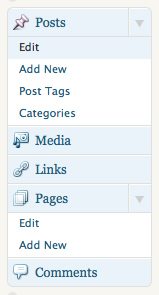 It is actually super easy to create a new post or page in WordPress.
- Login to your WordPress Admin panel;
- On the left column where the core navigation buttons are, click on either the Posts or Pages button, depending on which you want to create;
- Click on the “Add New” link. This will take you to the “Add New Post” or “Add New Page” screen.
- Enter your title in the top text area.
- Enter your post or page content. Edit your content.
- Save or Publish your new post or page.
- The rest is optional.
The Rest is Optional
Edit your Permalink
Your permalink is the unique URL web address for the specific post or page you are editing. You can view this just below the title for your post or page, at the top of your screen. There is an Edit button that allows you to modify the last portion of this URL address. By default, it will use the words for your title, with dashes in-between. Once you set it, you may not want to change it in the event others have saved that link for reference. If you change it, they will no longer get to that post or page by the same link they saved.
Posts: Post Tags
Tags allow you to assign relevant keyword(s) to your Posts, making it potentially easier for people to find your post if they are searching for that keyword or phrase. You can add and edit these in the Post Tags edit box which is by default located on the right column of your screen, under the Publish box. Learn more about Tags and Categories.
Posts: Specify a Category
Every post must by assigned to at least one category. By default, WordPress will assign any new post to the category Uncategorized. You can modify this in the Categories edit box which is located by default on the right column under Post Tags, which is under Publish. You can assign your post to as many categories as you like. At the bottom of the Category edit box, you can create a new Category. Learn more about Tags and Categories.



2 thoughts on “How to Add a New WordPress Post or Page”
I still can’t find any information on how to add a new post to the Home page. In the Edit section of that page are symbols for “Cloning,” “Prepend” (which is ridiculous jargon for “add”–and even dictionaries define it as jargon), frontend editor, backend editor, and block grid, among other terms. Not only is none of that clear, but nowhere on the web can I find instructions for how to do add the post (even after I publish it) to that page!
It appears that you have a Theme that has inserted its own “features” into the editor as what you are describing is not common to WordPress. You would thus need to review the documentation for your theme in order to understand that. If you would like to hire me for half an hour, you could send me a link to your website, the name of your theme and possibly access to your site and I could help you out, God willing.